


Scope of Application
This article applies to: Gate Web / App
Preparation before operation: You have logged into your Gate account, completed identity verification, and have available margin in your account
Estimated time required: 5 minutes
Objective
This article will guide you on how to use the Chasing Limit Order feature for perpetual contract trading on Gate Web or App.
What is a Chasing Limit Order?
A Chasing Limit Order is an intelligent limit order that automatically adjusts the order price based on market conditions:
-
The system places the order at the current best price in the order book (best bid or best ask)
-
If the order book price changes, the system automatically adjusts the price for the unfilled portion of the order
-
Continuously tracks the market price until the order is filled, manually canceled, or reaches the maximum chasing distance
-
Available for all perpetual contracts (both USDT-margined and BTC-margined)
Advantages: Compared to a regular limit order, a Chasing Limit Order can increase the speed of execution while still enjoying Maker fee discounts.
How to Use (Web Version)
Step 1: Select Chasing Limit Order
-
Go to the contract trading page and select the contract pair you want to trade
-
In the order placement area, click to expand the order type options
-
Select Chasing Limit Order
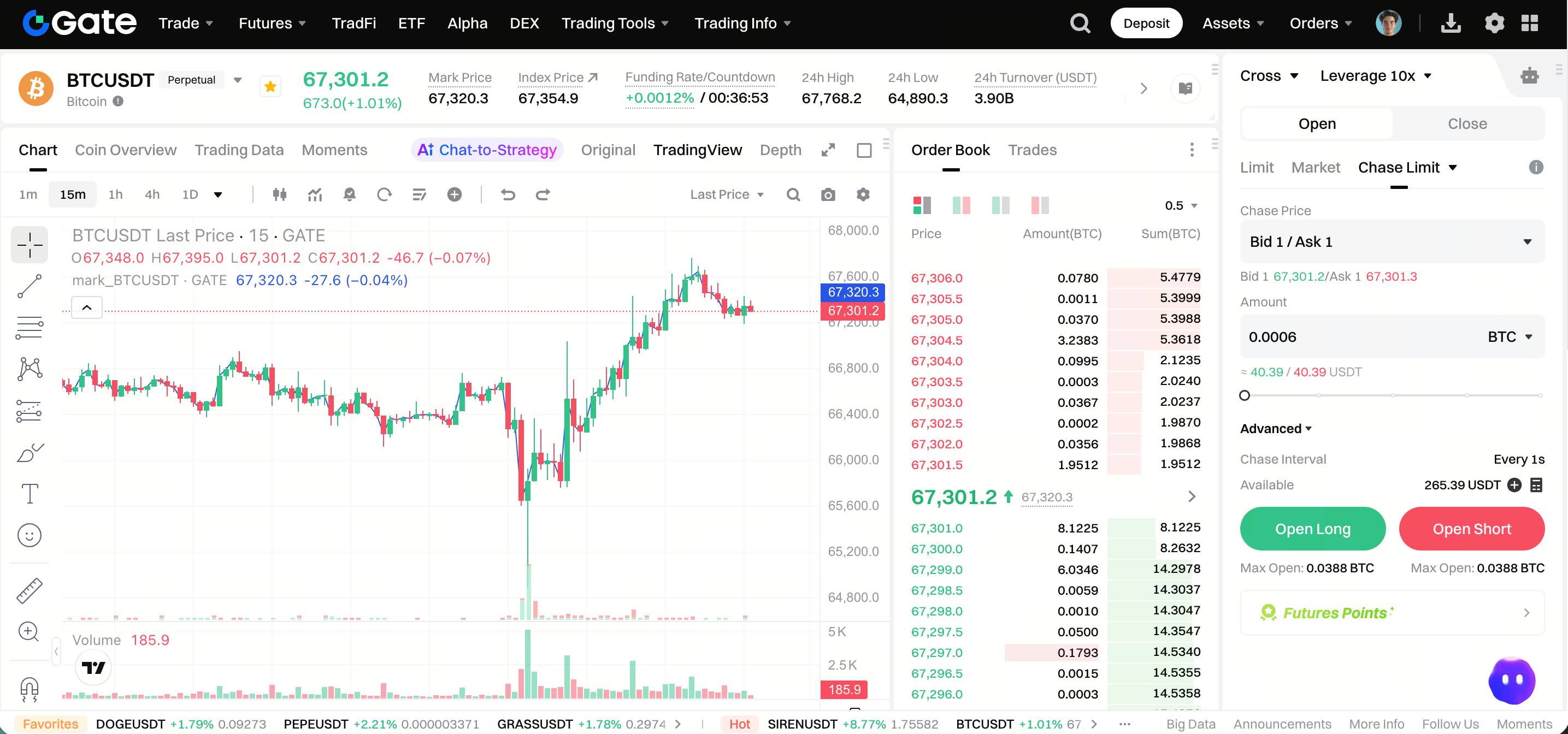
Step 2: Set Order Parameters
Set up your Chasing Limit Order using the following parameters:
-
Position Mode: Choose the position mode that matches the current contract
-
Chasing Price: The system defaults to the best price in the order book (buy orders use best bid, sell orders use best ask)
-
Total Quantity: Enter the total order quantity, or use the percentage slider for quick input
-
Chasing Interval: Set how frequently the order price is adjusted
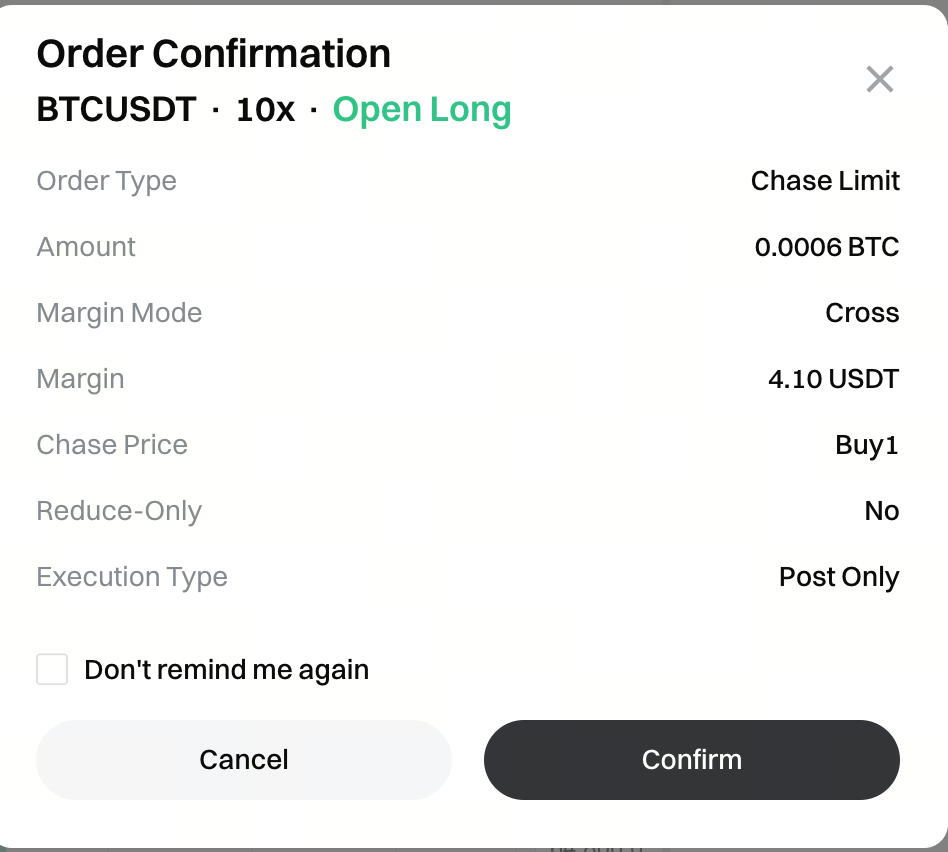
Step 3: Confirm and Submit Order
After verifying your order details, click the Buy/Long or Sell/Short button to submit your order.
Step 4: View and Manage Orders
Once your order is submitted:
-
View running orders under Current Orders > Chasing Limit Order at the bottom of the trading page
-
Click the Cancel button next to an order to cancel it
-
Completed or canceled orders can be viewed in Order History
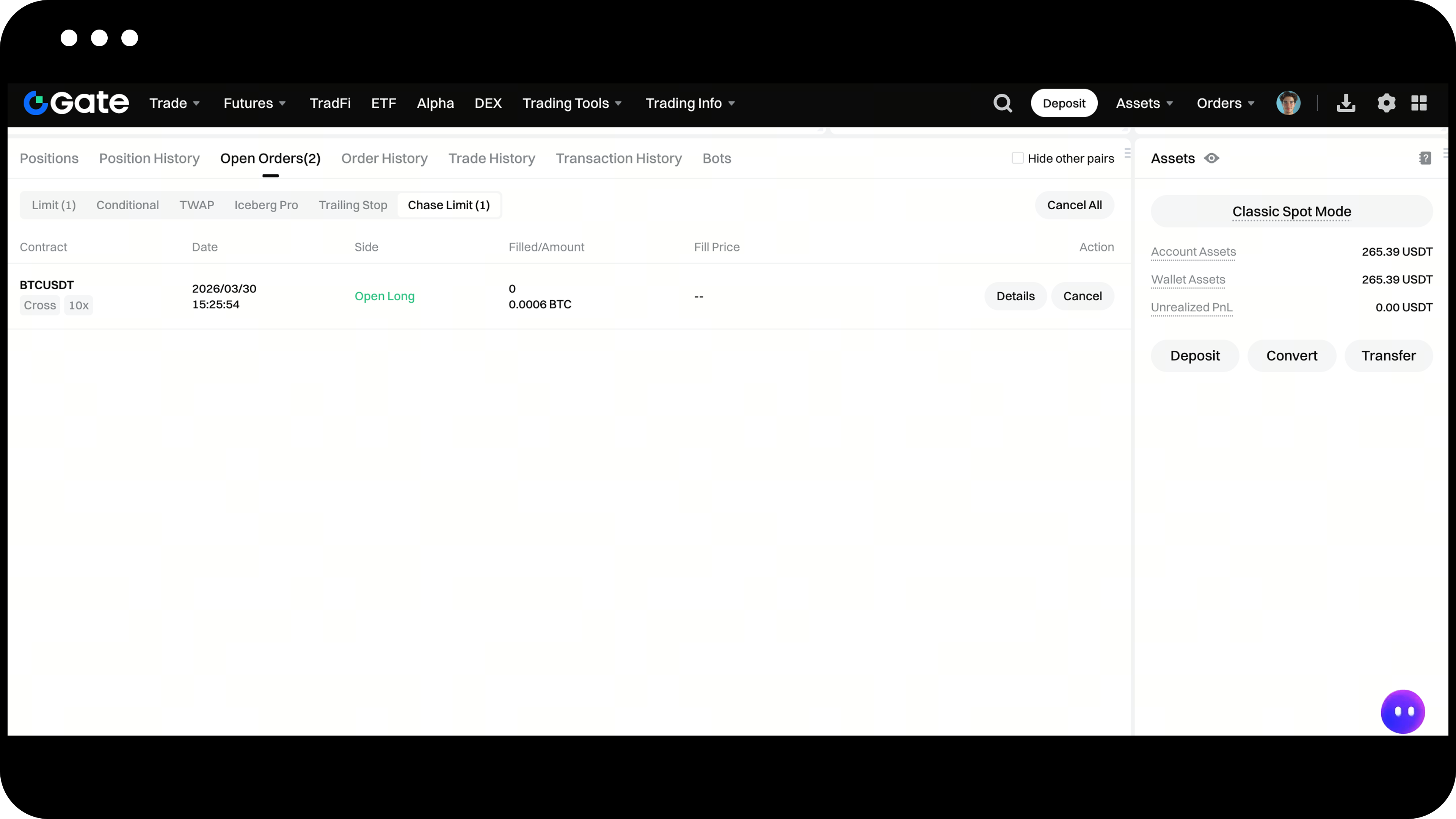
Step 5: View Order Details
Click the Details button next to an order to view:
-
Order status
-
Parameter information
-
Fill details
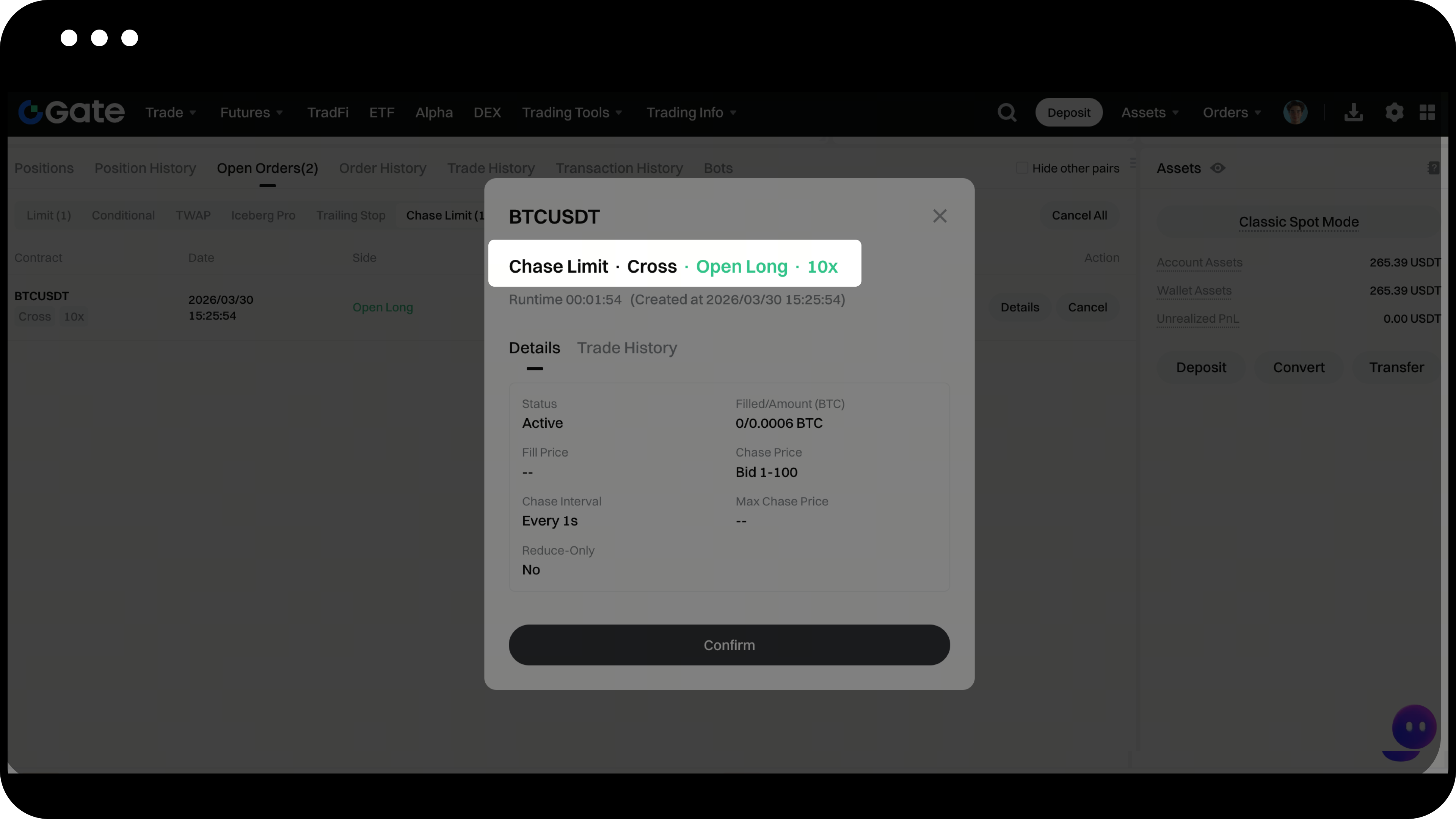
How to Use (App Version)
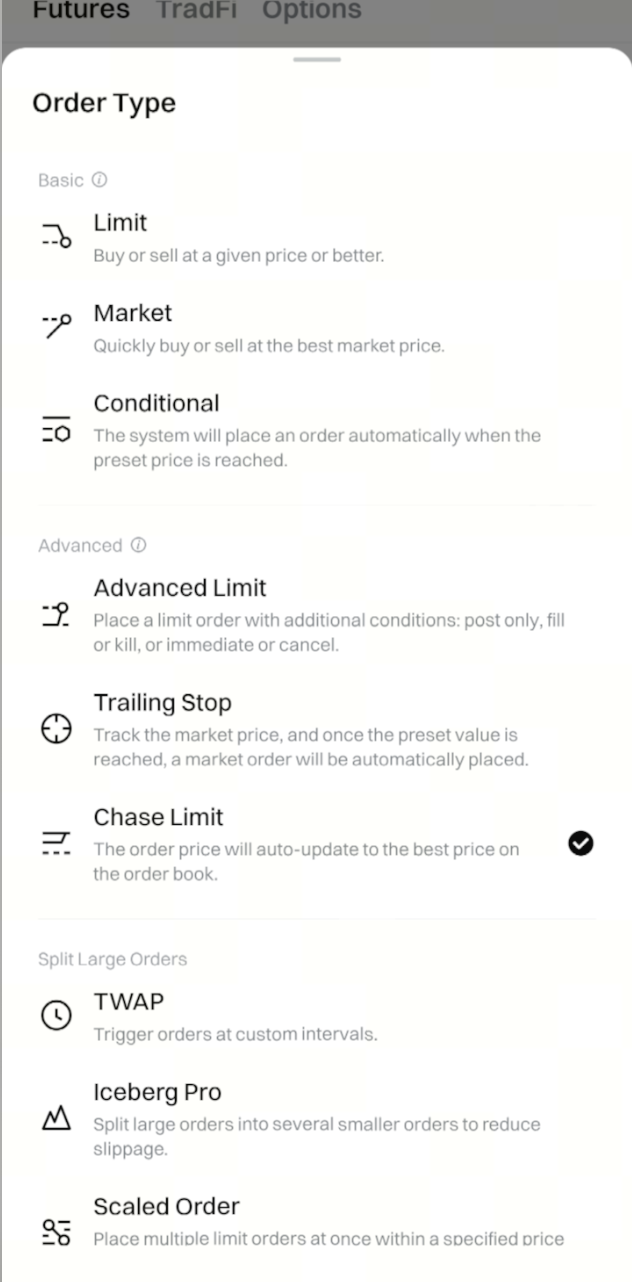
Step 1: Select Chasing Limit Order
-
Go to the contract trading page and select the contract pair you want to trade
-
In the order placement area, tap to expand the order type options
-
Select Chasing Limit Order
Step 2: Set Order Parameters
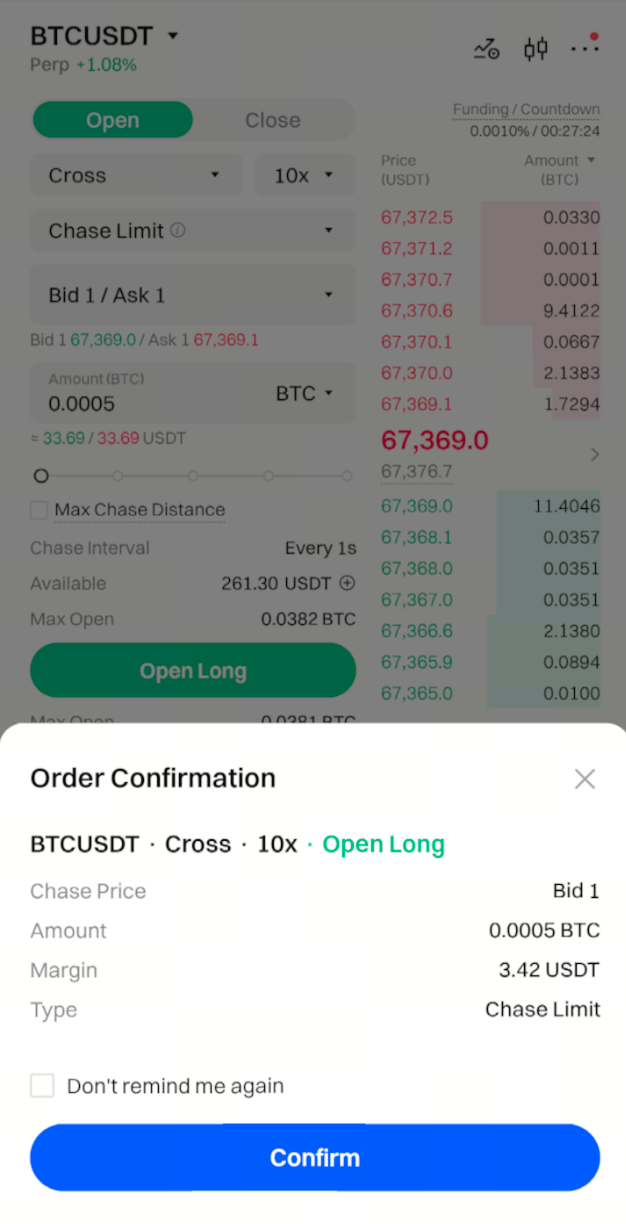
Set up your Chasing Limit Order using the following parameters:
-
Position Mode: Choose the position mode that matches the current contract
-
Chasing Price: The system defaults to the best price in the order book
-
Total Quantity: Enter the total order quantity, or use the percentage slider for quick input
-
Chasing Interval: Set how frequently the order price is adjusted
Chasing Limit Order price rules:
| Order Direction | Order Price |
|---|---|
| Long | Best bid |
| Short | Best ask |
Step 3: Confirm and Submit Order
After verifying your order details, tap the Buy/Long or Sell/Short button to submit your order.
Step 4: View and Manage Orders
Once your order is submitted:
-
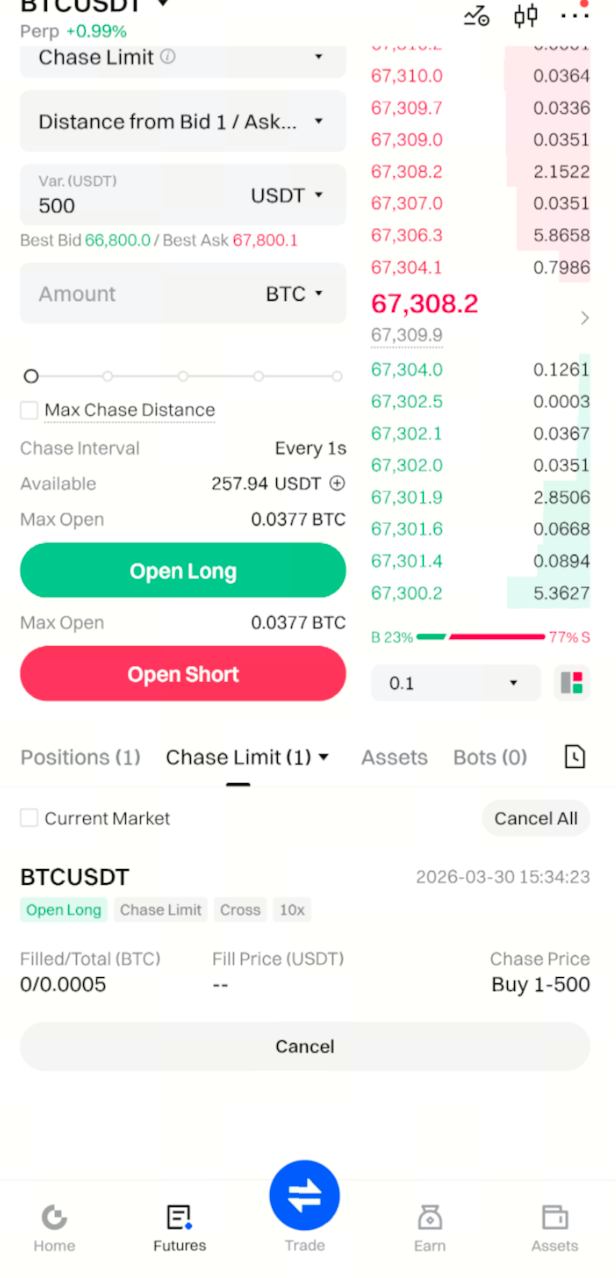
View running orders under Current Orders > Chasing Limit Order at the bottom of the trading page
-
Tap the Cancel button next to an order to cancel it
-
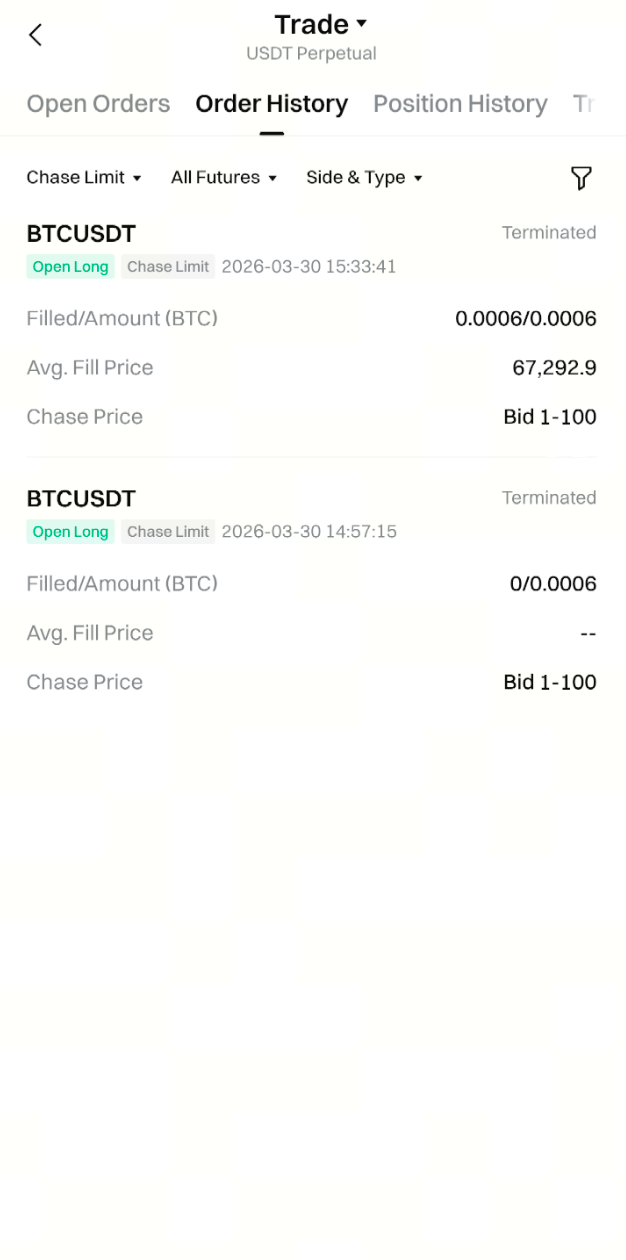
Tap the Bill icon at the far right of the Positions section at the bottom of the trading page to view order history
Step 5: View Order Details
In Current Orders or Order History, tap the order area to enter the details page and view:
-
Order status
-
Parameter information
-
Fill details
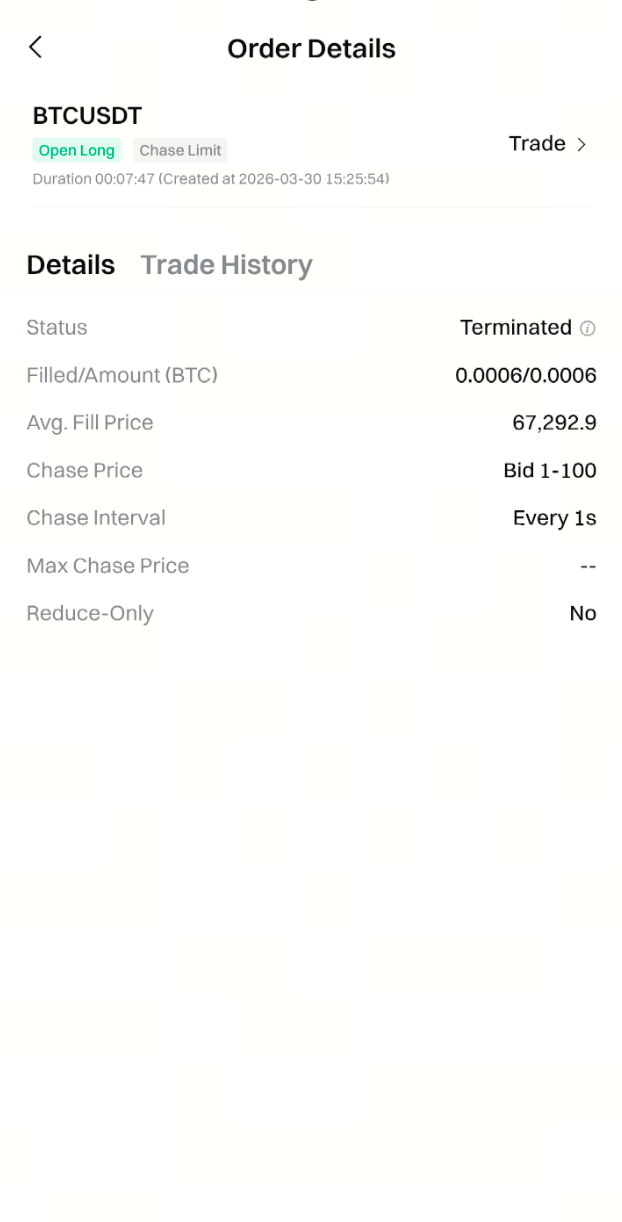
Advanced Options Explained
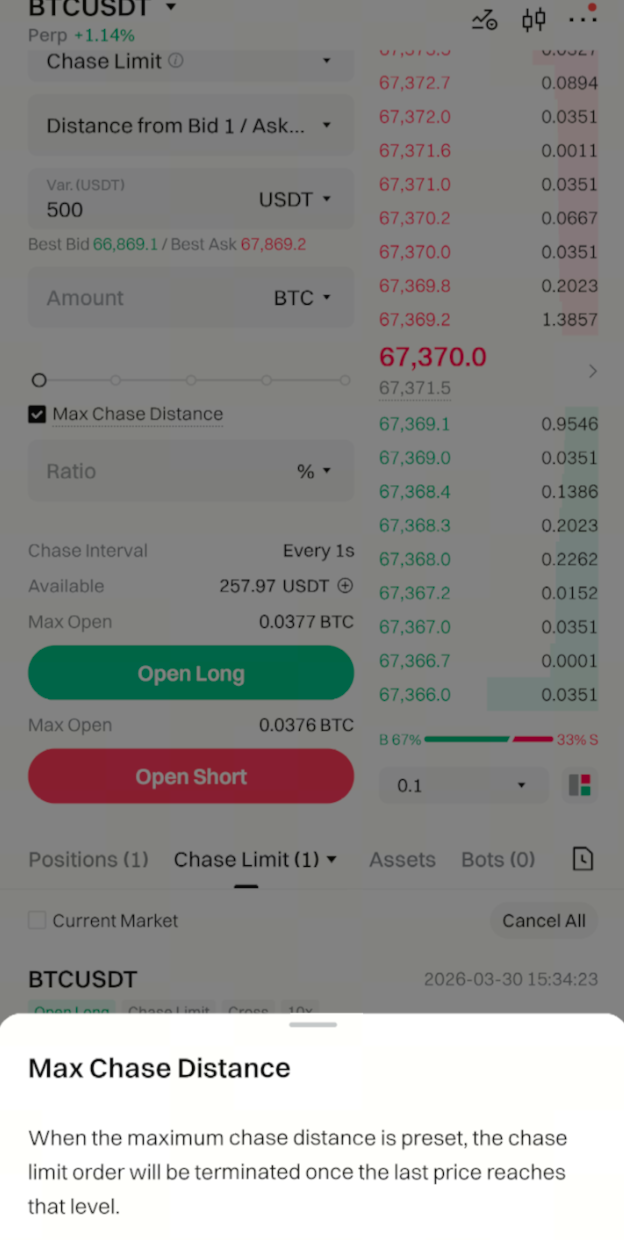
Maximum Chasing Distance
The maximum chasing distance can be set as a fixed value or percentage to control the tracking range of the order:
-
When the market price reaches the preset threshold, the Chasing Limit Order will be automatically canceled
-
Buy orders: When the latest market price ≥ maximum chasing buy price, the order ends
-
Sell orders: When the latest market price ≤ maximum chasing sell price, the order ends
Maximum Chasing Price
The order boundary price calculated based on the current order book price and the maximum chasing distance.
Notes
-
The order price of a Chasing Limit Order will adjust in real time with market conditions. Please ensure you have sufficient available margin in your account
-
Setting a maximum chasing distance can control the tracking range of your order and help avoid chasing in unfavorable market conditions
-
Partially filled orders will continue to be placed at the latest best price in the order book until fully filled or the termination condition is triggered
-
The chasing interval setting affects how frequently the order price is adjusted. It’s recommended to set this reasonably based on market volatility
Frequently Asked Questions
Q1: What’s the difference between a Chasing Limit Order and a regular Limit Order?
A: A Chasing Limit Order automatically adjusts the order price to follow market changes, while a regular Limit Order has a fixed price. Chasing Limit Orders can increase execution speed while enjoying Maker fee discounts.
Q2: Under what circumstances will a Chasing Limit Order be automatically terminated?
A: There are three scenarios where a Chasing Limit Order will end:
-
The order is fully filled
-
The user manually cancels the order
-
The market price reaches the set maximum chasing distance
Q3: What happens if a Chasing Limit Order is partially filled?
A: The unfilled portion will continue to be placed at the latest best price in the order book, tracking the market price until fully filled or the termination condition is triggered.
Q4: How are the fees for Chasing Limit Orders calculated?
A: Chasing Limit Orders are charged according to the Limit Order (Maker) fee rate, which can save on fees compared to Market Orders (Taker).
Disclaimer
The content provided herein is for reference and educational purposes only and does not constitute any financial, investment, trading, or legal advice, nor does it constitute an offer or solicitation to buy or sell any digital assets. Gate makes no express or implied representations or warranties regarding the accuracy, completeness, or timeliness of the information contained herein. Product features, interfaces, rules, and fee structures may be updated or adjusted at any time. Please refer to the latest announcements and the actual information displayed on the Gate platform for the most accurate details.
Digital asset investments involve significant risk, and prices may fluctuate substantially. You may lose the entire amount of your investment. Please make decisions cautiously based on your own financial situation and risk tolerance after fully understanding the associated risks. If necessary, you are advised to consult an independent professional financial or legal advisor.
For more information about potential risks, please refer to Gate's Risk Disclosure and User Agreement.
