


1.What is Convert?
Convert helps users swap one currency for another in one click. The quotation is generated by the trading . After the user confirms the swap, the settlement will be completed automatically in the user’s spot account. No fees will be charged in the process.
2. How do I use Convert?
Make a request for Convert on the website or app - review the swap result - swap settles in spot account
3. What are the minimum and maximum amounts of monetary value for each swap?
For example, when trading BTC, the minimum amount per transaction is 1 USDT or its equivalent in tokens (for smaller amounts, please use the “Convert Small Balance” feature). The maximum amount varies by token or trading pair and can be checked in real time on the page when you enter the amount.
4. How do I calculate the price?
There is a certain difference between the flash swap price and the spot price. If you are buying a currency, the price will be slightly higher than the spot price; if you are selling a currency, the price will be slightly lower than the spot price.
5. How do I view my Convert history?
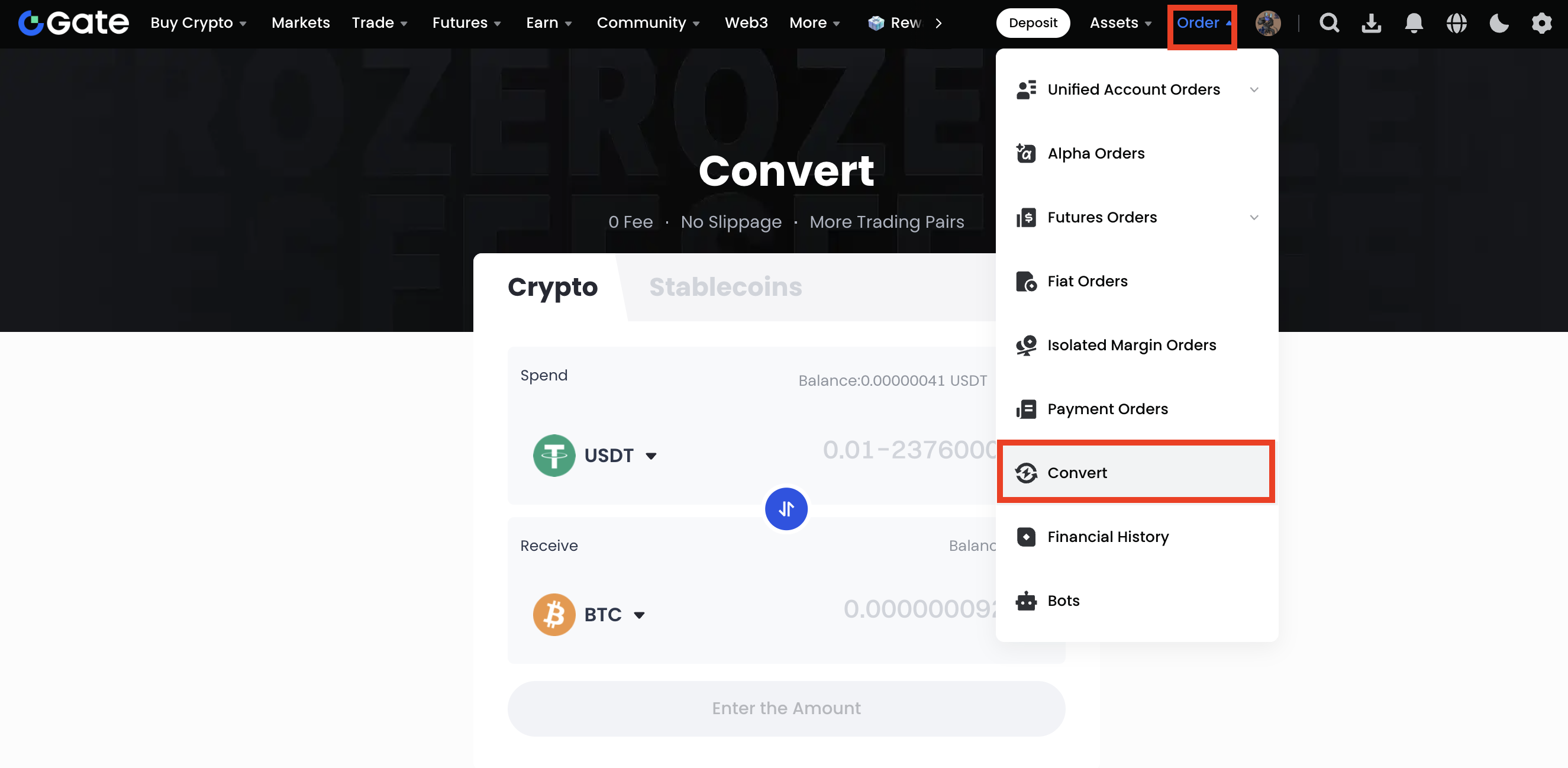
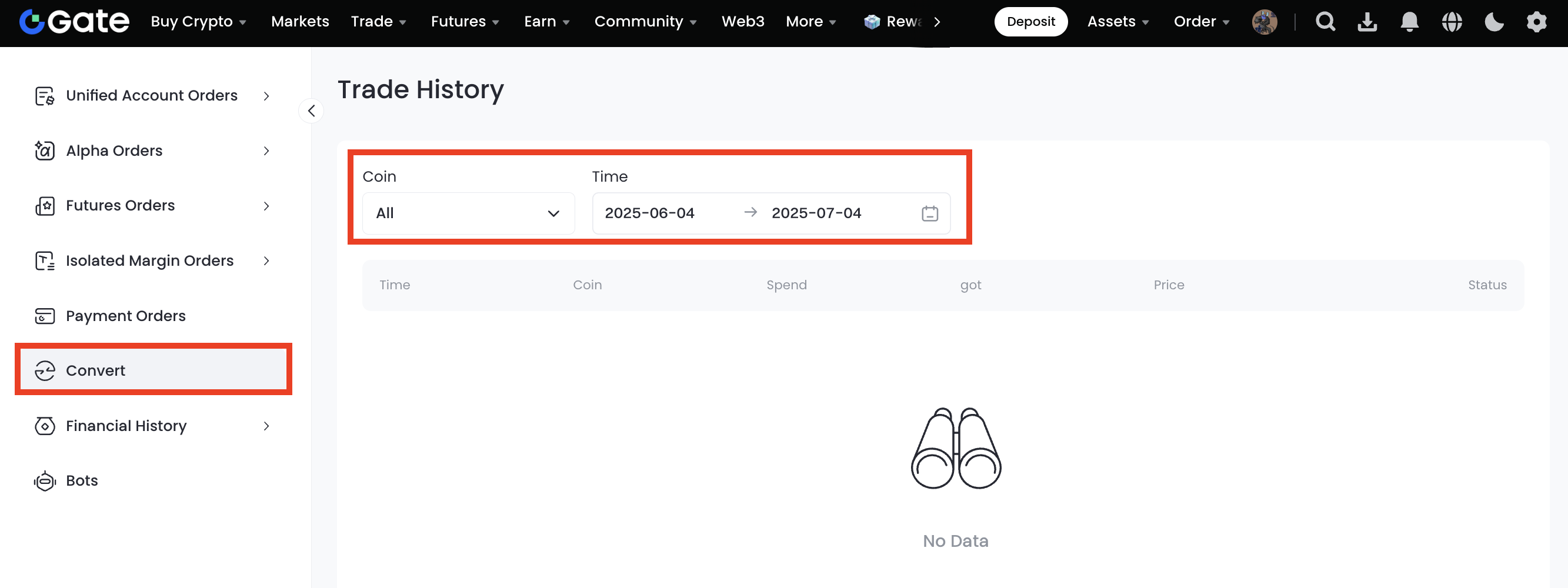
Log in to your Gate account and click on this link . Or the route: Order - Convert
6. How do I deposit and withdraw in Convert?
Convert transactions are settled directly in your spot account. You only need to deposit or withdraw funds in your spot account.
7. Why do I see "Inadequate balance"?
When making a certain transaction using Convert,your spot account must have sufficient corresponding assets.For example, if you want to exchange GT for 1 BTC, and the BTC flash swap price is 10,000GT, your spot wallet needs to hold at least 10,000GT available balance to successfully confirm the flash transaction.
Step-by-step tutorial on Flash Swap
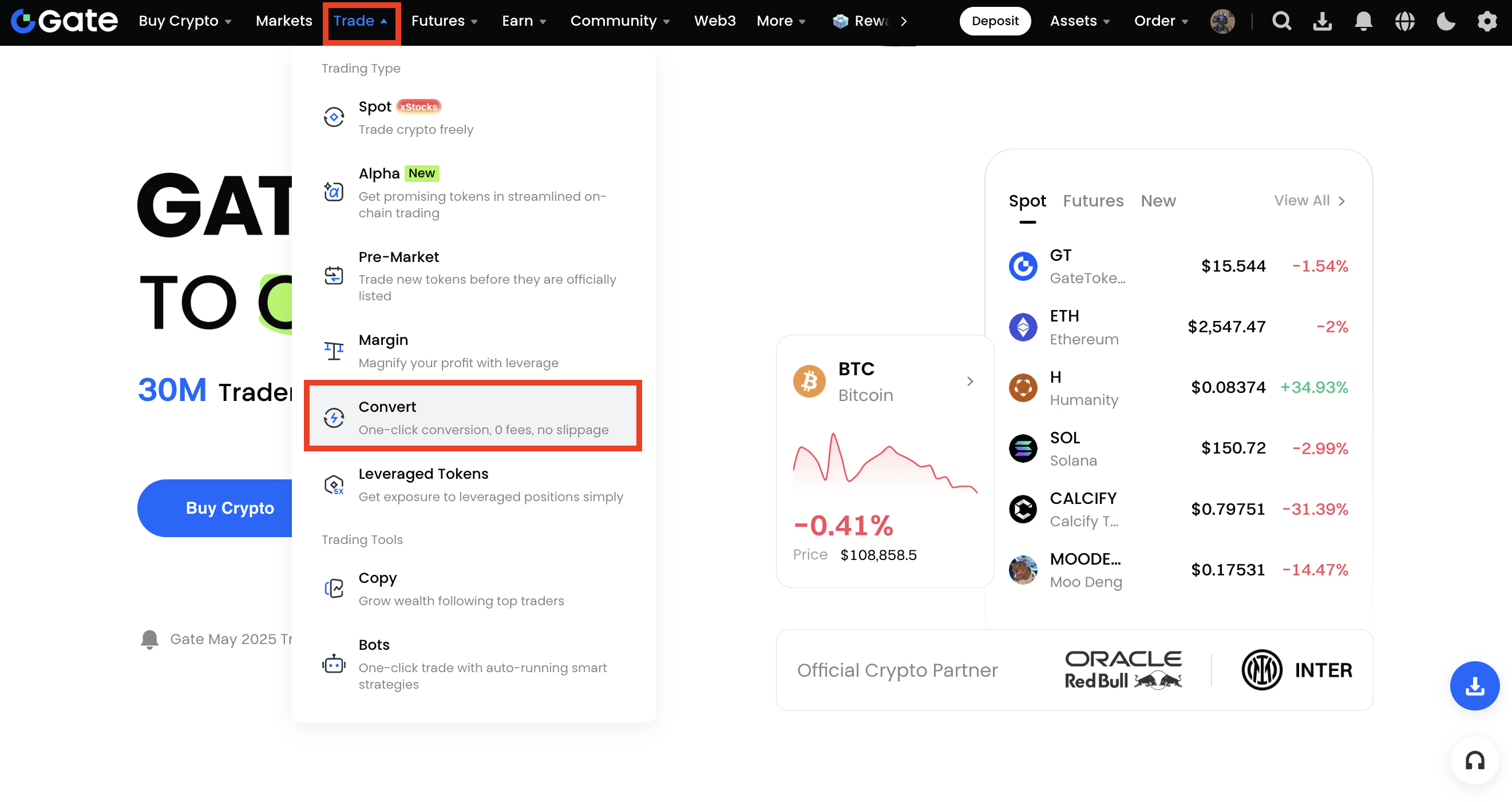
Step 1: Log into your account. Go to "Trade" - "Convert".
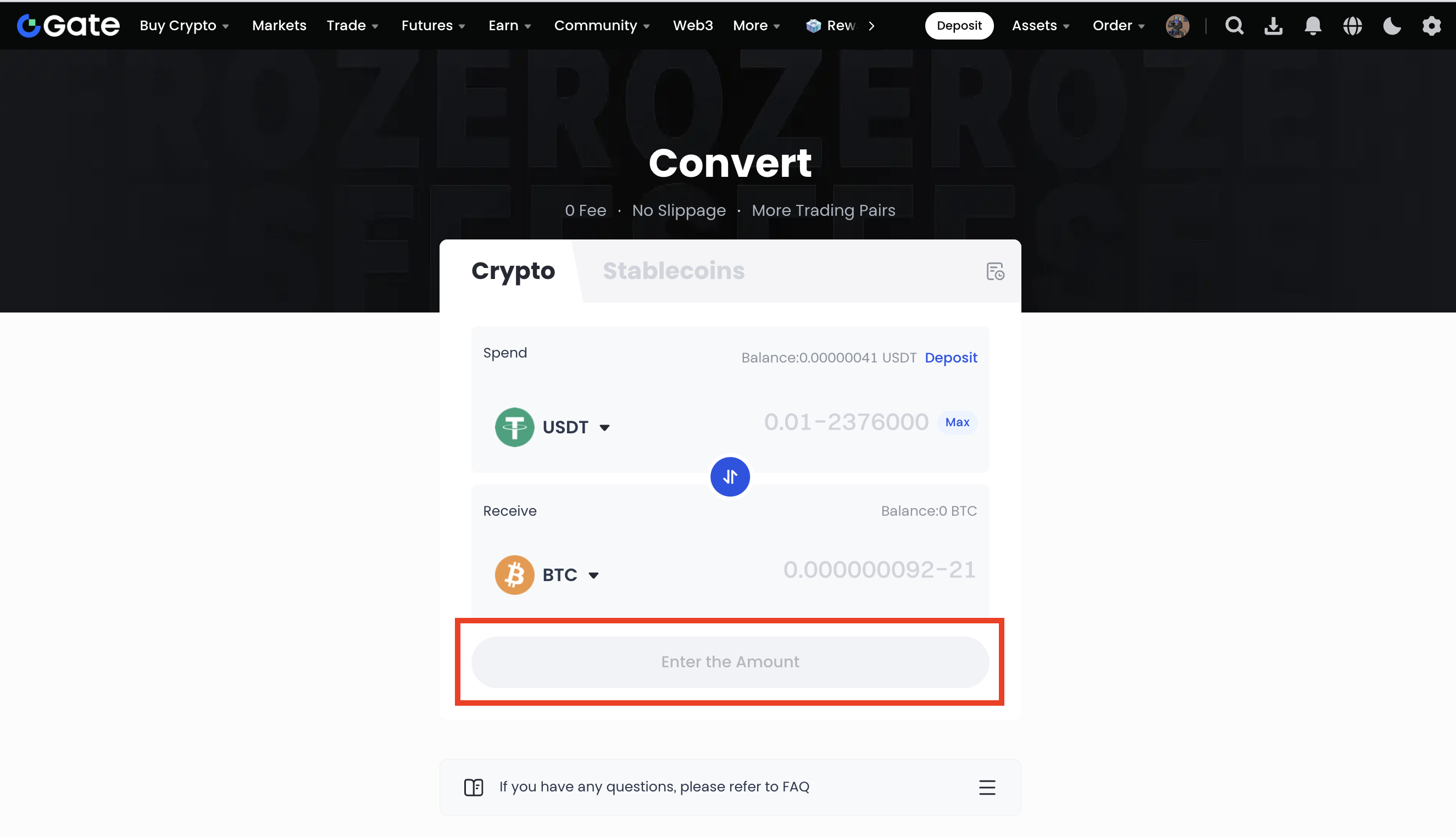
Step 2: If you were to buy/sell a currency, choose the currency and enter the amount you want to buy/sell. The swap result will be calculated and displayed on the page immediately after you entered the amount in the "Spend"/"Receive" box. Click on "Preview Convert Result" if you are happy with the swap result.
Step 3: After the swap is done, go to "Order" - “Convert”to access trade history.
Gate reserves the final right to interpret the product.
For further assistance, please visit the Gate official support page or contact our customer support team.
The content provided herein is for reference and educational purposes only and does not constitute any financial, investment, trading, or legal advice, nor does it constitute an offer or solicitation to buy or sell any digital assets. Gate makes no express or implied representations or warranties regarding the accuracy, completeness, or timeliness of the information contained herein. Product features, interfaces, rules, and fee structures may be updated or adjusted at any time. Please refer to the latest announcements and the actual information displayed on the Gate platform for the most accurate details.
Digital asset investments involve significant risk, and prices may fluctuate substantially. You may lose the entire amount of your investment. Please make decisions cautiously based on your own financial situation and risk tolerance after fully understanding the associated risks. If necessary, you are advised to consult an independent professional financial or legal advisor.
For more information about potential risks, please refer to Gate's Risk Disclosure and User Agreement.
